Introduction
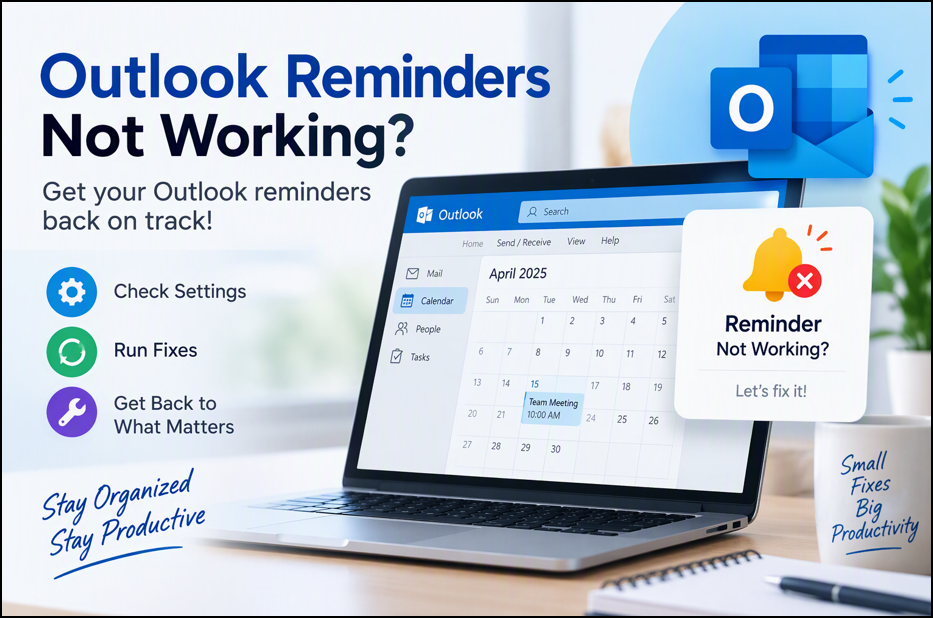
If Outlook reminders are not appearing or playing a notification sound at the scheduled time, the issue may be caused by disabled reminder settings or corrupted Outlook reminder data. This article provides step-by-step troubleshooting instructions to restore reminder functionality.
Resolution Steps
1. Verify Reminder Settings in Outlook
- Open Outlook Application.
- Navigate to File > Options > Advanced.
- Scroll down to the Reminders section.
- Ensure the following options are enabled:
- Show Reminders
- Play Reminder Sound
- Click OK to save the changes.

2. Test Reminder Functionality
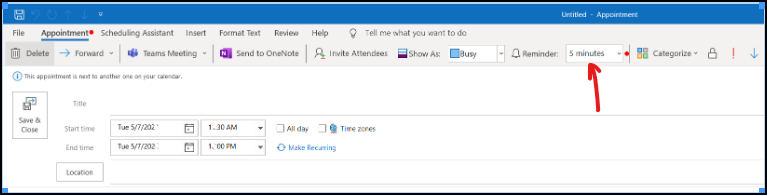
- On the Home tab, select New Appointment.
- Configure the appointment as follows:
- Set the Reminder field to 5 minutes.
- Set the Start Time to 6 minutes from the current time.
- Click Save & Close.
- Wait a few minutes and verify whether the reminder notification appears.
If the reminder works, no further action is required. If not, proceed with the following troubleshooting steps.
3. Clear and Rebuild Outlook Reminders (If still its not working)
- Close Outlook completely.
- Click the Start menu.
- In the Windows search box, type: outlook.exe /cleanreminders
- Launch Outlook.
- Create another test appointment and verify whether reminders are functioning correctly.
4. Reset Free/Busy Information
If reminders are still not working:
- Close Outlook completely.
- Click the Start menu.
- In the Windows search box, type: outlook.exe /cleanfreebusy
- Launch Outlook.
- Create another test appointment and check whether the reminder appears or not.
5. Reset Outlook Folders
If the issue persists:
- Close Outlook completely.
- Click the Start menu.
- In the Windows search box, type: outlook.exe /resetfolders
- Launch Outlook.
- Create another test appointment and confirm whether reminders are working.
Additional Troubleshooting
If Outlook reminders continue to fail after completing the above steps, perform an Office Repair to identify and fix any damaged Microsoft Office components.
Office Repair Steps
- Open Control Panel > Programs and Features.
- Select Microsoft Office or Microsoft 365 Apps.
- Click Change.
- Choose:
- Quick Repair (recommended first)
- Online Repair (if the issue persists)
- Follow the on-screen instructions and restart the computer if prompted.
-----------------------------------------------------------------------------------------------------------------------------------------------------
Summary
If Outlook reminders are not displaying or playing sounds, first verify the reminder settings, then test reminder functionality. If the issue continues, use the Outlook startup switches /cleanreminders, /cleanfreebusy, and /resetfolders sequentially. If none of these steps resolve the issue, perform a Microsoft Office repair.
Comments (0)
No comments yet. Be the first to leave one!