Introduction
If Microsoft Outlook remains in the foreground and stays on top of other applications even when you switch to a different program, the issue may be related to Windows taskbar settings or a problematic Outlook add-in. Follow the troubleshooting steps below to resolve the problem.
Method 1: Refresh the Windows Taskbar Settings
-
Close Outlook completely.
-
Right-click the Windows Taskbar and uncheck Lock the taskbar.
-
Right-click the taskbar again and re-enable Lock the taskbar by checking the option.
-
Launch Outlook and check whether the issue has been resolved.
If Outlook still remains on top of other applications, continue with the next method.
Method 2: Disable the Outlook Social Connector Add-in
-
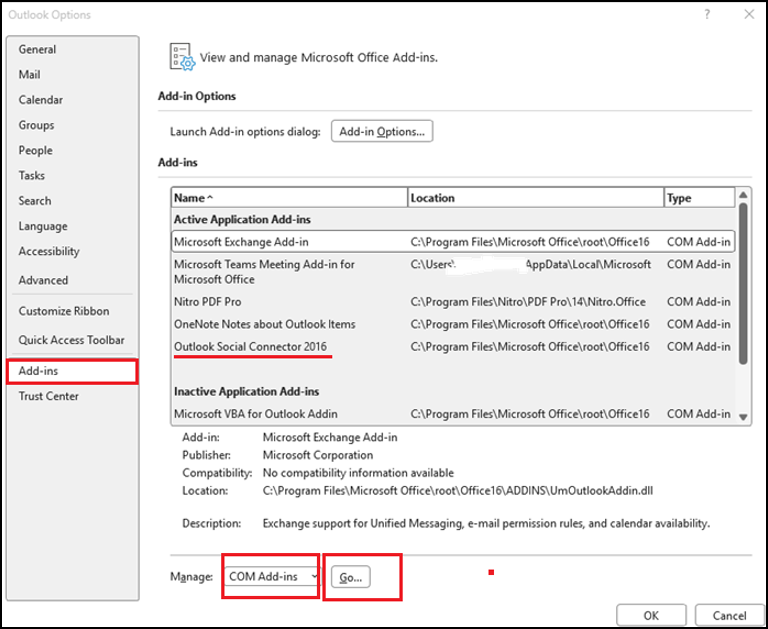
Open Outlook and navigate to:
File → Options → Add-ins
-
At the bottom of the window, locate the Manage drop-down menu, select COM Add-ins, and click Go.
-
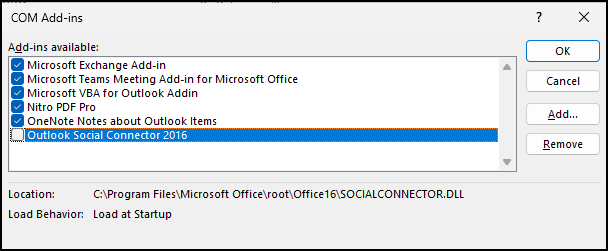
In the list of available add-ins, find Outlook Social Connector 2016 Add-in.
-
Clear the checkbox next to the add-in and click OK to save the changes.
-
Restart Outlook.
-
Verify whether Outlook now behaves normally and no longer stays above other applications.
Conclusion
The issue of Outlook staying on top of other windows is often caused by a temporary taskbar setting conflict or an Outlook add-in. Refreshing the taskbar lock setting and disabling the Outlook Social Connector 2016 Add-in are two effective troubleshooting methods that can help restore normal window behavior. If the problem persists, consider running an Office repair or checking for Outlook updates.
Comments (0)
No comments yet. Be the first to leave one!