Introduction
If Outlook displays folders, messages or navigation options incorrectly then resetting the Outlook view settings can often resolve the issue.
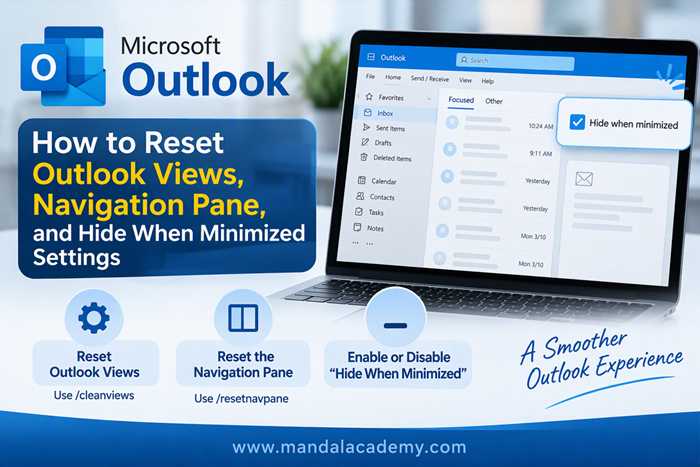
This guide explains how to restore Outlook's default views, reset the Navigation Pane, and manage the "Hide When Minimized" option.
Method 1: Reset Outlook Views
You can restore all Outlook views to their default settings by launching Outlook with the Outlook.exe /cleanviews switch. This removes all custom views and resets Outlook's built-in views.
Steps
- Close Outlook completely.
- Press Windows + R to open the Run dialog box.
- Type the following command: Outlook.exe /cleanviews
- Click OK or you can press Enter.
- Outlook will start and reset all custom view settings to their default configuration.
Please note: Any custom views you have created will be permanently removed.
Method 2: Reset the Navigation Pane
If the Outlook Navigation Pane is missing, corrupted, or not displaying correctly, you can reset it using the Outlook.exe /resetnavpane switch.
Steps
- Close Outlook.
- Press Windows + R to open the Run dialog box.
- Type the following command: Outlook.exe /resetnavpane
- Click OK or you can press Enter.
- Outlook will open and automatically rebuild the Navigation Pane for the current profile.
Please note: This method can help resolve issues related to missing folders, incorrect navigation settings, or startup errors caused by Navigation Pane corruption.
Method 3: Enable or Disable "Hide When Minimized"
The Hide When Minimized option allows Outlook to remain in the system tray instead of appearing on the taskbar when minimized.
Steps
- Locate the Outlook icon in the Windows taskbar notification area (system tray).
- Right-click the Outlook icon.
- Select or clear Hide When Minimized depending on your preference:
- Checked: Outlook remains hidden in the system tray when minimized.
- Unchecked: Outlook appears on the taskbar when minimized.
Comments (0)
No comments yet. Be the first to leave one!